Unveiling monday.com: The Ultimate Team Collaboration Tool Review
- Paul
- Jan 20
- 4 min read
Updated: Mar 20
Managing projects and team workflows can quickly become overwhelming without the right tools. monday.com promises to simplify this process by offering a flexible platform designed to help teams organize, track, and collaborate efficiently. But does it deliver on these promises? This review breaks down monday.com’s features, usability, pricing, and real-world applications to help you decide if it fits your team’s needs.

What Is monday.com?
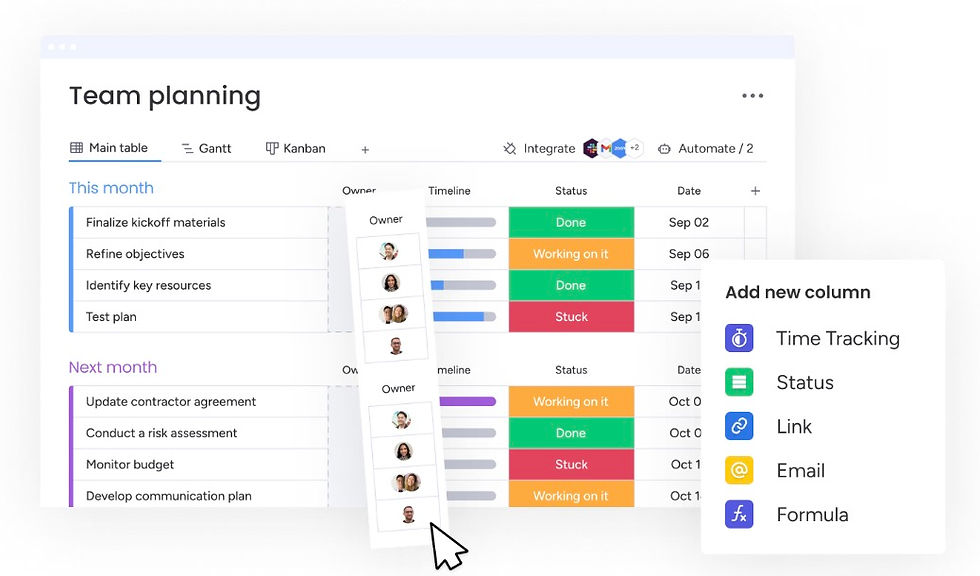
monday.com is a cloud-based work operating system that allows teams to create custom workflows, track projects, and manage everyday tasks. It uses a visual approach, letting users build boards that represent projects or processes. Each board contains items (tasks) that can be customized with columns for status, dates, people, and more.
The platform supports various work styles, from simple to-do lists to complex project management with automation and integrations. It aims to replace multiple tools by centralizing communication, task tracking, and reporting in one place.
Key Features and How They Work
Visual Project Boards
At the heart of monday.com are its boards. These boards are highly customizable and can be adapted for different workflows:
Task tracking: Create items with due dates, assignees, and priority levels.
Status updates: Use color-coded status columns to quickly see progress.
Multiple views: Switch between Kanban, Gantt, calendar, and timeline views to visualize work in different ways.
This flexibility makes it easy for teams to tailor the platform to their unique needs.
Automation and Notifications
monday.com offers automation to reduce repetitive work. For example, you can set rules like:
Notify a team member when a task status changes.
Move tasks to a different group when completed.
Set reminders for upcoming deadlines.
These automations help keep everyone aligned without manual follow-ups.
Integrations
The platform connects with popular tools such as:
Slack for communication
Google Drive for file storage
Zoom for meetings
Microsoft Teams and Outlook for scheduling
These integrations allow teams to keep their existing tools while syncing data with monday.com.
Collaboration Tools
monday.com supports team collaboration with features like:
Comments on tasks for direct communication
File attachments within tasks
@mentions to notify specific team members
Activity logs to track changes and updates
This keeps conversations and files linked directly to the work they relate to.
User Experience and Interface
monday.com’s interface is clean and intuitive. The drag-and-drop functionality makes it easy to move tasks between stages or reorder priorities. New users can start with templates designed for common workflows such as marketing campaigns, software development, or event planning.
The platform is accessible via web browsers, desktop apps, and mobile devices, ensuring teams can stay connected on the go. The mobile app is especially useful for quick updates and notifications.
Pricing and Plans
monday.com offers several pricing tiers based on the number of users and features:
Basic: Suitable for small teams needing simple task management.
Standard: Adds timeline views, integrations, and automation.
Pro: Includes advanced reporting, time tracking, and more automation.
Enterprise: Custom pricing with enhanced security and support.
Pricing scales with the number of users, so it’s important to evaluate how many team members will actively use the platform.
Real-World Examples of monday.com in Use
Marketing Team Campaign Management
A marketing team used monday.com to plan and execute a product launch. They created a board with tasks for content creation, social media scheduling, and event coordination. Automations sent reminders before deadlines, and integrations with Slack kept communication seamless. The visual timeline helped the team spot bottlenecks early.
Software Development Sprint Planning
A software team adopted monday.com to manage agile sprints. They used Kanban views to track user stories and bugs. The ability to attach files and comment directly on tasks improved collaboration between developers and testers. Integration with GitHub allowed automatic updates when code was pushed.
Event Planning Coordination
An event planning company used monday.com to organize vendor contacts, schedules, and budgets. Custom columns tracked payment status and vendor availability. The calendar view helped visualize event timelines, and notifications ensured no deadlines were missed.
Strengths of monday.com
Highly customizable: Adapt boards to fit any workflow.
User-friendly interface: Easy to learn and navigate.
Strong collaboration: Centralizes communication and files.
Automation saves time: Reduces manual task management.
Multiple views: Supports different project visualization styles.
Wide integrations: Connects with many popular tools.
Limitations to Consider
Pricing can add up: Costs increase with more users and advanced features.
Learning curve for complex setups: Customization options may overwhelm new users.
Limited offline access: Requires internet connection for most features.
Some features locked behind higher tiers: Time tracking and advanced reporting are not in basic plans.
Tips for Getting the Most Out of monday.com
Start with templates to avoid building boards from scratch.
Use automations to reduce repetitive notifications and task updates.
Regularly review boards to archive completed tasks and keep workflows clean.
Train your team on key features to ensure consistent use.
Integrate with your existing tools to centralize work.

Who Should Use monday.com?
monday.com works well for teams that need a flexible, visual tool to manage projects and tasks. It suits:
Small to medium-sized teams across industries
Teams that value customization and visual workflows
Groups that want to reduce email and meeting overload
Teams already using tools like Slack or Google Drive who want integration
It may not be ideal for very small teams with simple needs or those on tight budgets due to pricing.
Final Thoughts
In summary, the path to accomplishing our objectives on monday.com is frequently marked by challenges and valuable learning experiences. It is crucial to stay resilient and flexible when confronted with difficulties. By welcoming change and fostering a positive outlook, we can turn setbacks into chances for development. Keep in mind that success encompasses not only reaching our goals but also the insights gained throughout the journey. Let us persist in pursuing excellence while supporting each other in our efforts.


Comments